
Ingenico Terminal Troubleshooting Guide: Every Model, Every Error (2026)

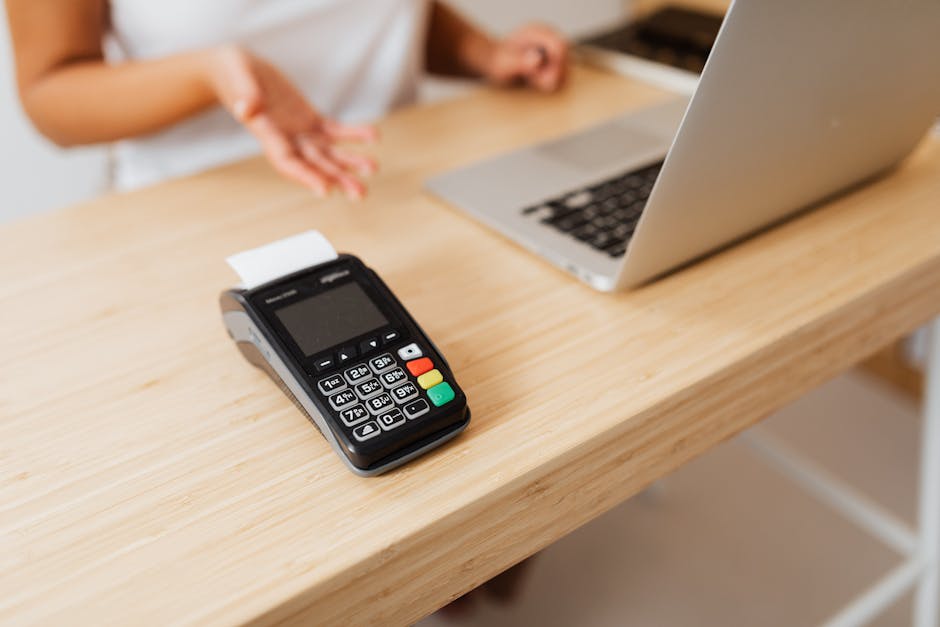
Your Ingenico terminal is showing an error. The queue is building up. And the error message means nothing to you.
Here's the truth: most Ingenico card machine problems can be fixed in under 5 minutes — if you know exactly what to do.
Start with the lookup tool below — type the exact text from your terminal screen and get the fix instantly. Then read on for the full model-by-model guide.
Terminal models covered: iCT220, iCT250, iWL220, iWL250, iWL255, iPP320, iPP350, Move 3500, Move 5000, Desk 3500, Desk 5000, Lane 3000, Lane 5000, Lane 7000, Link 2500 and all other Ingenico models.
Ingenico Error Code Lookup — Type Your Error Message
⚡ Terminal Error Lookup — Ingenico · Verifone · PAX
Type any error message exactly as it appears on your terminal screen
Jump to your problem:
Ingenico Error Codes — Full Reference Table
The lookup tool above covers all brands. The table below is Ingenico-specific with direct fix links.
| Error on Screen | What It Means | Fix |
|---|---|---|
| FAILURE ON ALL COMS | Terminal cannot reach the payment host — all communication channels failed | Check network/SIM, restart terminal. Full guide → |
| HOST NOT RESPONDING | Network is up but the acquiring bank server is not responding | Wait 2 minutes and retry — usually a host-side outage |
| PIN PAD OUT OF ORDER | Secure connection between terminal and PIN pad is broken (usually expired certificate) | Full guide → |
| ALERT IRRUPTION | Anti-tamper sensor triggered — terminal has detected possible physical tampering | Full guide → |
| UNAUTHORIZED | Terminal is not authorised on the host — usually after a SIM swap or network change | Full guide → |
| SETTLEMENT UNSUCCESSFUL | End-of-day batch settlement failed — transactions are at risk | Full guide → |
| NO CONNECTION | Cannot establish connection to host | Check cables/SIM, restart router, restart terminal |
| CONNECTION ERROR | Connection started but dropped mid-attempt | Check signal strength; reseat SIM; restart terminal |
| LOST COMMUNICATION | Terminal lost connection to host during a transaction | Do not retry immediately — check if transaction posted first |
| CARD ERROR | Chip could not be read | Clean chip slot; ask customer for another card |
| BATCH NEAR MAX | Transaction batch is almost full — settlement is urgent | Perform batch settlement immediately |
| PIN PAD NOT READY | PIN pad not communicating at startup | Power-cycle terminal; check PIN pad cable seating |
| REFUND DECLINED | Refund rejected by host | Check refund is within time limit; contact acquirer |
| PUT ON BASE | iWL220/Move wireless terminal cannot connect via Bluetooth to base | Remove from base, wait 10 seconds, reseat terminal on base |
| SMILEY FACE (frown) | Anti-tamper tripped — terminal is locked | Contact Ingenico service — cannot be reset by merchant |
| PRINTER NOT READY | Paper roll issue | Reload paper roll, ensure cover is fully closed |
Ingenico Card Machine Not Connecting
This is the most common Ingenico problem — and it has different causes depending on how your terminal connects.
Wireless terminals (iWL250, Move 3500, Move 5000)
- Check SIM card is firmly seated — remove and reinsert
- Check signal bars on the terminal screen — move terminal closer to a window if weak
- For Bluetooth terminals: remove from base, wait 10 seconds, replace on base
- Restart terminal: hold # + yellow CLR together for 3 seconds
Ethernet terminals (Desk 3500, Lane 3000, iCT250)
- Trace the Ethernet cable from terminal to router — check for kinks or loose plugs
- Unplug the cable from the terminal, wait 5 seconds, plug back in firmly
- Restart your router — wait 3 minutes for full boot
- Restart terminal
For the complete deep-dive guide, see: Ingenico Card Machine Not Connecting.
PIN PAD Out of Order
This error appears when the secure link between your terminal and its PIN pad is broken. The most common cause is expired IngeTrust digital certificates — a known issue affecting Telium-generation Ingenico terminals (iCT220, iCT250, iWL250 and similar).
Quick checks first:
- Open the terminal back cover and firmly reseat the PIN pad cable into the USB port
- Restart the terminal (see restart steps below)
- If the error persists after restart, the IngeTrust certificate has almost certainly expired
Temporary workaround (until terminal can be serviced):
- Enter TELIUM MANAGER menu
- Set the date back to 01-01-2018
- Restart the terminal — PIN pad should come back online
- Set the correct date again WITHOUT restarting
- Do not power off, restart, or perform a TMS download — PIN pad will go offline again if you do
For the complete explanation and permanent fix options, see: Ingenico PIN PAD Out of Order — full guide.
Alert Irruption Error
The "Alert Irruption" message means Ingenico's anti-tamper system has triggered. This is a security feature that locks the terminal whenever it detects that the casing may have been opened or physically compromised.
Common causes:
- Terminal was dropped or bumped hard enough to trigger the sensor
- Someone attempted to open the terminal casing
- Battery was removed while terminal was powered on
- Extreme temperature change caused sensor trip
What to do:
Unfortunately, once Alert Irruption triggers, you cannot reset it yourself — it requires a service centre visit. Contact your acquirer or Ingenico support. In the meantime, put up a card machine out of order sign.
For full details: Ingenico Alert Irruption guide.
Ingenico Unauthorized Error
The Unauthorized error means the terminal is trying to connect to the host but is being rejected — the host does not recognise this terminal on this connection.
Most common causes:
- SIM card was swapped or replaced (especially common after a SIM upgrade from 3G to 4G)
- Terminal was moved to a new location with a different network
- Acquirer changed terminal parameters without re-downloading the configuration
- Terminal ID (TID) has been deactivated by the acquirer
Fix steps:
- Restart the terminal first — sometimes a fresh boot resolves a temporary auth mismatch
- If the error persists, call your merchant helpdesk and give them your Terminal ID (TID) and Merchant ID (MID)
- Ask them to confirm the terminal is active on their system and request a parameter download
- The helpdesk can push a fresh configuration to the terminal remotely
Settlement Failed / Settlement Unsuccessful
Settlement is the end-of-day process where all transactions are batched and sent for clearing. If settlement fails, your takings may not be processed.
What to do immediately:
- Do not perform any new transactions yet
- Check the terminal network connection is working
- Retry the settlement: go to Menu → Batch → Settle (exact path varies by acquirer software)
- If it fails again, call your merchant helpdesk immediately — do not leave unsettled batches overnight
- Your helpdesk can force a manual settlement or advise on the batch status
Important: If settlement fails and you cannot retry before close of business, document all transaction receipts from that day. Your acquirer will need them to manually process the batch.
Chip Reader Not Working
Constant chip read errors do not always mean a broken reader. Something may be stuck inside the card slot.
- Power off the terminal and unplug all cables
- Shine a torch into the card reader slot — look for a sticker, card fragment, or debris
- Use a thin piece of plastic (not metal) to carefully remove any obstruction
- Power the terminal back on and test with a chip card
- If the error persists after cleaning, the read head may be worn — contact your service provider
How to Restart Any Ingenico Terminal
A restart fixes a surprising number of problems. Here's how to do it properly for every Ingenico model.
All countertop models (iCT220, iCT250, Desk 3500, Lane series)
Method 1 — Soft restart (recommended): Hold the # key + yellow CLR key simultaneously for 3 seconds. The terminal will beep and reboot.
Method 2 — Power off: Unplug the power cable from the wall. Wait 15 seconds. Plug back in.
Wireless/mobile models (iWL220, iWL250, Move 3500, Move 5000)
Soft restart: Hold # + yellow CLR for 3 seconds — terminal will reboot and power off.
Power on after restart: Press and hold the green key for 2 seconds.
For the full illustrated restart guide covering every model: How to Restart Ingenico Card Machine.
Model-Specific Troubleshooting
Ingenico iCT220 and iCT250 Troubleshooting
The iCT series are countertop terminals connected via Ethernet or phone line. Most issues are connectivity-related. Restart with # + yellow. For PIN PAD Out of Order on iCT250: reseat the iPP350 or iPP320 PIN pad cable, then restart. If the certificate error persists, contact your acquirer for a terminal swap.
Ingenico iWL220 and iWL250 Troubleshooting
These are wireless GPRS terminals. "Put on Base" error: remove the terminal from the base, hold # + yellow to restart, wait 30 seconds, then reseat on base. Connectivity failures: remove and reinsert the SIM card, then restart. After restart, press the green key to power on.
Ingenico Move 3500 and Move 5000 Troubleshooting
The Move series are 4G/WiFi enabled. For connectivity issues: go to Settings → Network and confirm WiFi or 4G is selected. For the Move 5000, restart using # + yellow CLR — hold for 3 seconds, then power on with the green key. For settlement failures on Move terminals, ensure the terminal has a stable network connection before attempting settlement.
Ingenico Lane 3000 and Lane 5000 Troubleshooting
Lane terminals are customer-facing PIN pads. "Lane 3000 not connecting" almost always means the Ethernet cable between the Lane and the POS system is loose — check both ends. Restart the Lane by unplugging it from the POS system, waiting 10 seconds, and reconnecting. The Lane gets its network through the POS system, not directly from your router.
Ingenico Desk 3500 Troubleshooting
The Desk 3500 is a countertop terminal with an integrated PIN pad. If the Desk 3500 shows connection errors: check the Ethernet cable (blue or grey cable in the back), restart the terminal with # + yellow, and verify your router is online. For "Desk 3500 PIN pad out of order": this is almost always the IngeTrust certificate — see the PIN PAD Out of Order section above.
Ingenico Link 2500 Troubleshooting
The Link 2500 is a Bluetooth and WiFi enabled mobile terminal. For connectivity issues: check WiFi settings under Admin → Network → WiFi. If showing as disconnected: forget the network and reconnect. Restart using # + yellow keys.
Frequently Asked Questions
How do I contact Ingenico support?
Ingenico UK support: 0844 583 3015. Ingenico US support: 1-800-435-3014. In most cases, you should contact your acquirer (the bank or payment processor) first — they have direct lines to Ingenico service and can arrange terminal swaps faster than going to Ingenico directly.
How do I find my Merchant ID (MID) and Terminal ID (TID)?
Both are printed on your transaction receipts. You can also find them in the terminal's admin menu — typically under Admin → Terminal Info or by pressing #, 3, 1 (varies by software version).
Can I fix an Alert Irruption myself?
No. Alert Irruption locks the terminal at a security level that only Ingenico service centres can reset. There is no merchant-accessible workaround. Contact your acquirer for a replacement terminal.
Will restarting my terminal lose my transaction data?
No. A soft restart (# + yellow keys) does not affect your transaction batch or sales data. Always perform a soft restart first — only contact support if the problem persists after restarting.
What does a sad face or frown icon mean on an Ingenico terminal?
A sad face on boot means the anti-tamper sensor has tripped (Alert Irruption). A happy/smiley face is normal — it means the terminal is booting correctly. If the terminal shows a smiley and then stays on that screen for more than 60 seconds without booting, the battery is likely depleted — charge the terminal.
What does FAILURE ON ALL COMS mean?
It means the terminal tried every available communication path and failed on all of them. Check your network connection or SIM card, restart the terminal, and restart your router. If it persists after two restarts, call your merchant helpdesk with your Terminal ID and Merchant ID.
Ingenico terminal keeps losing connection — what is the long-term fix?
Intermittent connectivity usually points to a signal or hardware issue rather than a software one. For GPRS terminals: check if your mobile operator has changed frequency bands in your area (2G shutdowns affect older Ingenico SIMs). For Ethernet terminals: replace the patch cable — they degrade over time. If the problem persists, ask your acquirer for a terminal diagnostic.
You should also read:
SaaS Subscription Guide: Annual vs Monthly Plans
Today I'm going to explain the benefits and reasons why you should offer yearly billing to your SaaS customers. I noticed that lots of bloggers mention how useful it is for SaaS services to offer yearly billing from a cash flow perspective. And that’s perfectly…
Continue reading...Ingenico Card Machine Not Connecting? 8 Fixes (WiFi, Ethernet, SIM/GPRS)
Your Ingenico card machine is showing "No Connection", "Failure on All Coms", or "Connection Error" — and customers are waiting. Here's the good news: most Ingenico connectivity problems are fixed in under 3 minutes. The trick is knowing which type of connection your terminal uses,…
Continue reading...PIN PAD Out of Order Error: Causes & Fixes for Ingenico, Verifone & PAX (2026)
Got a "PIN PAD Out of Order" error on your payment terminal? Here's the good news: in most cases, you can get it back online in under 2 minutes. In this post, I'll walk you through exactly why this happens and what to do —…
Continue reading...